Finding malware on your WordPress site is a stomach-drop moment. Maybe Google slapped a red “this site may be harmful” warning on your listing, maybe your host suspended the account, or maybe visitors are getting redirected to some sketchy pharmacy page you have never seen. Whatever tipped you off, the situation is fixable, and panicking or paying someone in a rush is usually the wrong first move.
Here is the honest version of what removing WordPress malware involves. You confirm the infection, take a copy of the damaged site so you have evidence and a fallback, then systematically replace everything that can be replaced with clean files, hunt down what cannot, scrub the database, and lock every door the attacker could have used. Then you tell Google it is clean and you harden the site so the same hole is not sitting open next week.
This guide walks the whole process in plain English, both the fast plugin-assisted route and the full manual cleanup, plus how to get back into Google’s good graces afterward. If you would rather not touch any of it yourself, our WordPress malware removal and security service handles cleanups end to end. Either way, read this first so you understand what actually needs to happen.
How do you remove malware from a WordPress site?
You remove WordPress malware by scanning to find every infected file, replacing the core software, plugins and themes with fresh copies from official sources, deleting any malicious files and unauthorized admin accounts, cleaning injected code out of the database, and then resetting every password and security key so the attacker loses access. That is the whole job in one sentence. The rest of this guide is the careful version, because the danger with malware is not usually the cleanup itself. It is missing one hidden backdoor and getting reinfected days later.
There are two routes to a clean site, and most people use a mix of both. A reputable security plugin can scan, quarantine and remove a large share of common infections automatically, which is the fast path. A manual cleanup gives you certainty and catches the clever stuff a scanner misses, which is the thorough path. For a simple blog hit by a common infection, the plugin route often does it. For a store, a membership site, or anything with a stubborn reinfection, you want the manual process below.
Warning: Do not just delete the one file your scanner flagged and call it done. Malware almost always plants a hidden backdoor somewhere else so it can walk back in. Cleaning the visible symptom without closing the entry point is why sites get reinfected within days.
First, confirm your site is actually infected
Before you tear anything apart, make sure you are dealing with malware and not a plugin conflict or a hosting glitch. Real infections leave fingerprints. Here are the common ones and what each usually means.
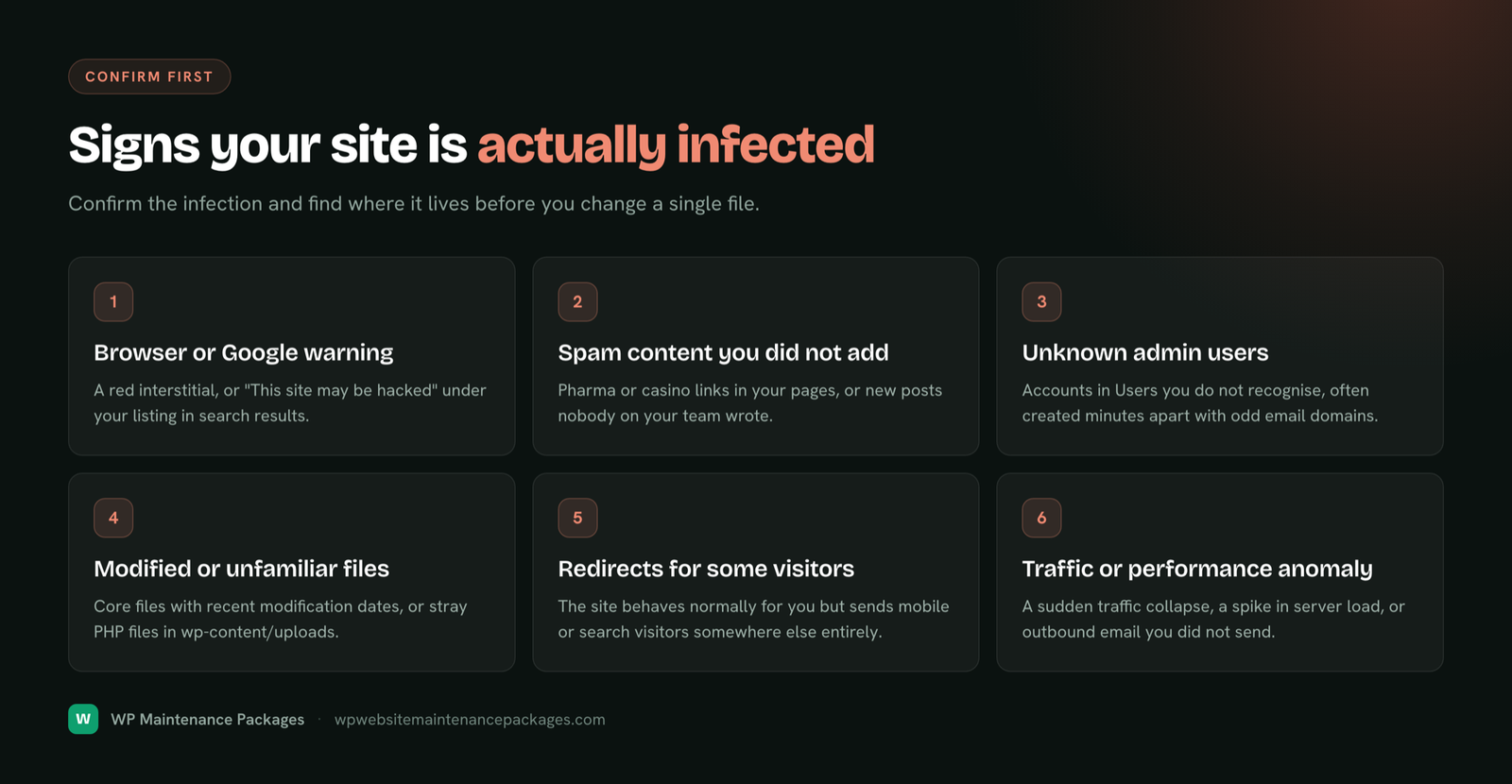
| What you are seeing | What it usually means |
|---|---|
| Google shows “this site may be hacked” or a red warning screen | Google has detected malicious content or a blocklist match. Confirm in Search Console under Security Issues. |
| Visitors get redirected to spam, pharma, or gambling sites | A malicious redirect injected into your files or database, often only firing for visitors from search, not for logged-in admins. |
| Your host suspended the account or emailed a malware notice | The host’s own scan found infected files. Their email often lists exact file paths, which is a huge head start. |
| Strange new admin users you did not create | The attacker created a way back in. A classic backdoor. |
| Unknown files, or PHP files inside wp-content/uploads | The uploads folder should hold images and documents, never PHP. PHP there is almost always malicious. |
| Pages or posts you never wrote, often spammy keywords | Injected spam content, sometimes hidden from normal view but visible to Google. |
| The site is suddenly slow, or sends spam email from your server | Your server is being used to send spam or run attacks, a common goal of infections. |
If you are seeing one or more of these, treat it as a confirmed infection and work through the steps below. If you are unsure, a scan settles it. Our post on the real risks of neglecting maintenance covers how most of these infections get in through outdated software in the first place, which is the same hole you will need to close at the end.
Before you touch anything: back up the infected site
This feels backwards, backing up a site you know is infected, but do it anyway. You want a complete copy of the site exactly as it is right now, files and database, for three reasons: it is your fallback if a cleanup step goes wrong, it preserves evidence of how the attack happened, and it lets you recover any recent content the attacker may have touched. Label this backup clearly as infected so nobody restores it by accident later.
While you are at it, put the site into maintenance mode or take it offline if you can. This stops visitors landing on malicious pages, stops the infection spreading through your traffic, and stops Google crawling the compromised version and deepening any penalty. If your host suspended the site, it is already offline, which is inconvenient but at least contains the damage.
Expert tip: Also change your hosting control panel password, your FTP or SFTP password, and your database password right now, before cleanup. If the attacker has those, they can undo your work in real time while you clean. Locking the outer doors first makes everything after it stick.
The fast route: clean with a reputable security plugin
For a lot of infections, a trusted security plugin will do most of the heavy lifting. Install one, run a full scan, and let it identify and quarantine infected files. Well-known options in the WordPress world include Wordfence, Sucuri and MalCare. They each scan your files against known-clean versions and flag anything that has been modified or added, which is exactly what you need to find injected code.
Here is the honest limitation. A scanner is very good at catching known malware signatures and modified core files. It is less reliable with cleverly obfuscated code, brand-new attacks, and infections buried in the database. So use a plugin as your first pass and your ongoing safety net, but do not assume a single green checkmark means you are completely clean, especially on a store or a site that has already been reinfected once. When the stakes are high, verify with the manual process.
How to remove WordPress malware manually, step by step
This is the thorough cleanup. It takes longer, but it gives you real certainty because you are replacing everything replaceable with known-clean files and inspecting everything that is left. Work through it in order.
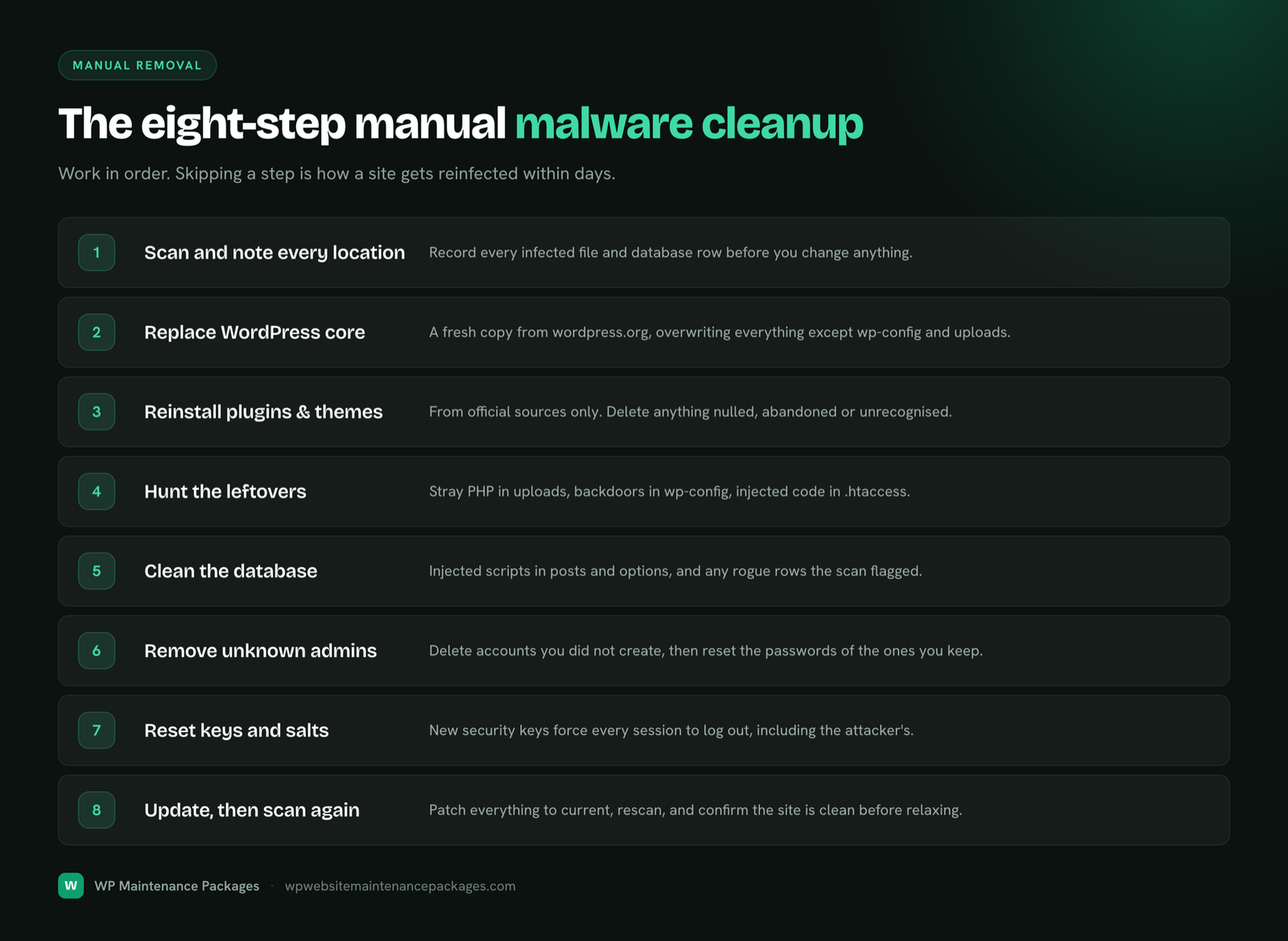
1. Scan and note every infected location
Start from your scan results and your host’s notice if you have one. Write down every flagged file path and every symptom. You are building a map so that when you clean, you can confirm each infected spot is dealt with rather than cleaning blindly.
2. Replace WordPress core with a fresh copy
Download a clean copy of WordPress from WordPress.org in the same version you run, and replace the core files, everything except your wp-content folder and your wp-config.php. Deleting and reinstalling wp-admin and wp-includes entirely, then dropping in the fresh versions, wipes out any core files the attacker modified. Core is the easiest part to clean precisely because it should be identical to the official release, so anything different is suspect.
3. Reinstall plugins and themes from clean sources
Do not try to surgically clean each plugin. Delete them and reinstall fresh copies from the official plugin directory or the developer you bought them from. For your theme, if you have customizations in a child theme, keep the child theme after inspecting it and replace the parent. Delete every plugin and theme you are not actively using, including inactive ones, because a deactivated plugin sitting on the server can still be the entry point.
4. Hunt down malicious files that are left
Now inspect what cannot simply be replaced, mainly your uploads folder and your root directory. Look for PHP files inside wp-content/uploads (there should be none), recently modified files with odd names, and code that looks obfuscated, long strings of gibberish, or functions like eval and base64_decode wrapped around encoded text. Check your .htaccess file for injected redirect rules and your wp-config.php for anything that does not belong. This is the step that catches backdoors, so take your time.
5. Clean the database
Malware also hides in the database, usually as injected scripts in posts and options, or spam content. Search your database for suspicious script tags and the same encoded-code patterns you looked for in files. This is delicate work, so back up the database before editing it, and if you are not comfortable in phpMyAdmin, this is the point where calling in help is sensible rather than risking your content.
6. Remove unknown admin users and reset the rest
Delete any administrator account you did not create, then reset the password on every remaining user, especially admins. Attackers frequently leave a hidden admin account as their way back in, so this step is not optional.
7. Reset security keys and force everyone to log out
WordPress uses secret keys and salts (stored in wp-config.php) to secure login sessions. Generate a fresh set from the official WordPress salt generator and paste them in. This instantly invalidates every existing login session, so anyone with a stolen session, including the attacker, is kicked out.
8. Update everything, then scan again
Update WordPress core, all plugins and all themes to their latest versions, since the outdated software is almost certainly how they got in. Then run a fresh full scan and confirm it comes back clean. One clean scan is good; a clean scan plus your own manual inspection is what lets you actually breathe.
After cleanup: clear the Google warning and harden the site
Cleaning the files is only half the recovery. If Google flagged your site, that warning stays until you ask them to recheck. Open Google Search Console, go to the Security Issues report, confirm the listed problems are resolved, and request a review. Reviews typically take a day or a few, and until it clears, your search traffic stays suppressed, so do this the moment the site is clean.
Then close the door for good. The infection got in somehow, and if you do not harden the site, you are just waiting for the next one. At minimum: keep everything updated on a strict schedule, put a firewall in front of the site, enforce strong passwords and two-factor authentication on all admin accounts, remove unused plugins and themes permanently, and make sure you have automatic off-site backups running so a future incident is a quick restore rather than a crisis. Our website maintenance checklist lays out the full hardening routine step by step.
Expert tip: The single most effective prevention is not a plugin, it is speed of updating. Most WordPress sites are hacked through a known vulnerability in an outdated plugin or theme, one that already had a patch available. Applying updates within days of release closes the exact holes attackers scan for.
How do you know the malware is completely gone?
You confirm it is gone with a combination of checks, not a single scan. Run a full scan with your security plugin and get a clean result. Then check manually: browse the site logged out and from a search result, since some infections only trigger for search visitors. Confirm there are no unknown admin users, no PHP files in uploads, no injected code in .htaccess or wp-config. Check Search Console shows no security issues. If all of those line up and stay clean for a few days with no reinfection, you are genuinely clear.
If the site gets reinfected shortly after you clean it, that is a specific and important signal: a backdoor was missed, or the original vulnerability is still open. Reinfection means the job is not finished, not that malware is unbeatable. It is also the clearest sign that it is time to bring in someone who does this daily.
When should you hire a professional instead?
Doing it yourself is realistic for a straightforward infection on a simple site when you have backups and some technical comfort. There are situations where paying an expert is the smarter call, and being honest about which situation you are in saves you money and stress.
- You handle customer data or payments. On a store or any site with sensitive data, a missed backdoor is not just an inconvenience, it is a breach. The stakes justify a professional.
- The site keeps getting reinfected. If it comes back after you clean it, something is being missed, and repeating the same cleanup will not fix it.
- You have no clean backup and are not comfortable in the database. The manual database and file work carries real risk of breaking the site, and without a backup there is no undo.
- The site is down and every hour costs you money. When speed matters, an experienced team clears it faster than you will learning as you go.
If any of those fit, our team handles WordPress malware removal and security as a done-for-you service, and ongoing WordPress care plans keep the site monitored and hardened so a repeat is far less likely. There is no lock-in and the team is US-based and WordPress-focused.
The bottom line
Removing malware from WordPress is methodical work, not magic. Confirm the infection, back up the damaged site, replace core, plugins and themes with clean copies, hunt down the leftover malicious files and database injections, delete unknown admin users, and reset every password and security key. Then clear the Google warning and harden the site so the hole that let them in is closed.
The part people skip is that last stretch, the hardening and the ongoing updates, which is exactly why so many cleaned sites get hit again. A one-time cleanup fixes today’s problem. Consistent WordPress maintenance, with prompt updates, monitoring and off-site backups, is what stops you ever having to read a guide like this again. If you want that handled for you, our maintenance packages cover it from a flat monthly fee.
Frequently asked questions
Can I remove WordPress malware for free?
Yes, if you do it yourself. A free security plugin can scan and remove many common infections, and the manual cleanup costs nothing but your time and some technical nerve. The catch is certainty: free tools catch known threats well but can miss clever backdoors, so for a store or a reinfected site, paid help is often worth it.
How did my WordPress site get infected?
Almost always through a known vulnerability in an outdated plugin or theme, or through a weak or reused password. The overwhelming majority of WordPress hacks trace back to software that had a security patch available but had not been updated yet. That is why updating promptly and using strong, unique passwords prevents most infections.
Will reinstalling WordPress remove the malware?
Reinstalling core removes malware from the core files, but not from your plugins, themes, uploads folder or database, which is where a lot of infections actually live. So a core reinstall is one important step, not the whole fix. You still need to replace plugins and themes, clean the database, and remove any backdoor files.
How long does it take to clean a hacked WordPress site?
A simple, well-documented infection on a site with good backups can be cleaned in a couple of focused hours. A badly infected store, a reinfection, or a site with no backups can take a full day or more, since every file and database table needs careful inspection. Speed depends far more on how buried the malware is than on the size of the site.
Should I pay the ransom if my site is held hostage?
No. Paying does not guarantee you get your site back or that the attacker leaves, and it marks you as someone who pays. Restore from a clean backup taken before the infection, or clean the site using the steps above. If you are stuck, a professional cleanup is a far safer use of that money.
Do I need a security plugin after cleaning the site?
Yes. A security plugin with a firewall and ongoing scanning is part of keeping the site clean, since it blocks common attacks and alerts you fast if something slips through. It is not a substitute for prompt updates and backups, though. Think of it as one layer in a stack, not the whole defense.
Why does my site keep getting reinfected after I clean it?
Because a backdoor was missed or the original vulnerability is still open. Reinfection means the entry point is still there, so the attacker simply walks back in. You need to find and remove every backdoor file and unknown admin user, and patch the outdated software that let them in, or the cycle continues.
Can Google penalize my site for being hacked?
Google does not penalize you for being a victim, but it will show warnings on your listing and suppress your traffic while the site is flagged as harmful, which has the same practical effect. Once you clean the site and request a review in Search Console, the warning is removed and rankings recover. The faster you clean and request review, the smaller the traffic hit.