How often should you update your website? The short version: different parts of a WordPress site run on different clocks, and the whole job only works if you match each task to its own rhythm instead of doing everything once in a while. Security patches cannot wait. Plugin updates belong on a weekly loop. Big core upgrades should sit for a week or two before you touch them. Backups and monitoring run in the background every single day.
Most site owners hear “maintenance” and picture one chunky task they will get to eventually. That mental model is exactly what leaves a site running an outdated plugin for three months while bots scan for that exact hole. The work is not hard and it is not huge. It is spread out, and it is relentless. Miss a week here and there and nothing happens, until the week you miss lines up with a vulnerability someone is actively exploiting.
This guide lays out the real schedule for a WordPress site: how often to update the core, plugins, themes, PHP and the server, how often to run backups, scans, speed checks and audits, and how that rhythm shifts depending on whether you run a brochure site, a lead machine or a store. If you want the wider picture of what all of this involves before you get into timing, our guide on what website maintenance is covers the six core jobs in full.
How often should you update your WordPress site?
Update security releases the same day, plugins and themes weekly, and major WordPress core versions a week or two after they land, tested on a staging copy before they touch the live site. That single sentence answers the main question. The rest is understanding why each piece runs at its own pace, because the reasons are what keep you from either over-updating and breaking things or under-updating and getting hacked.
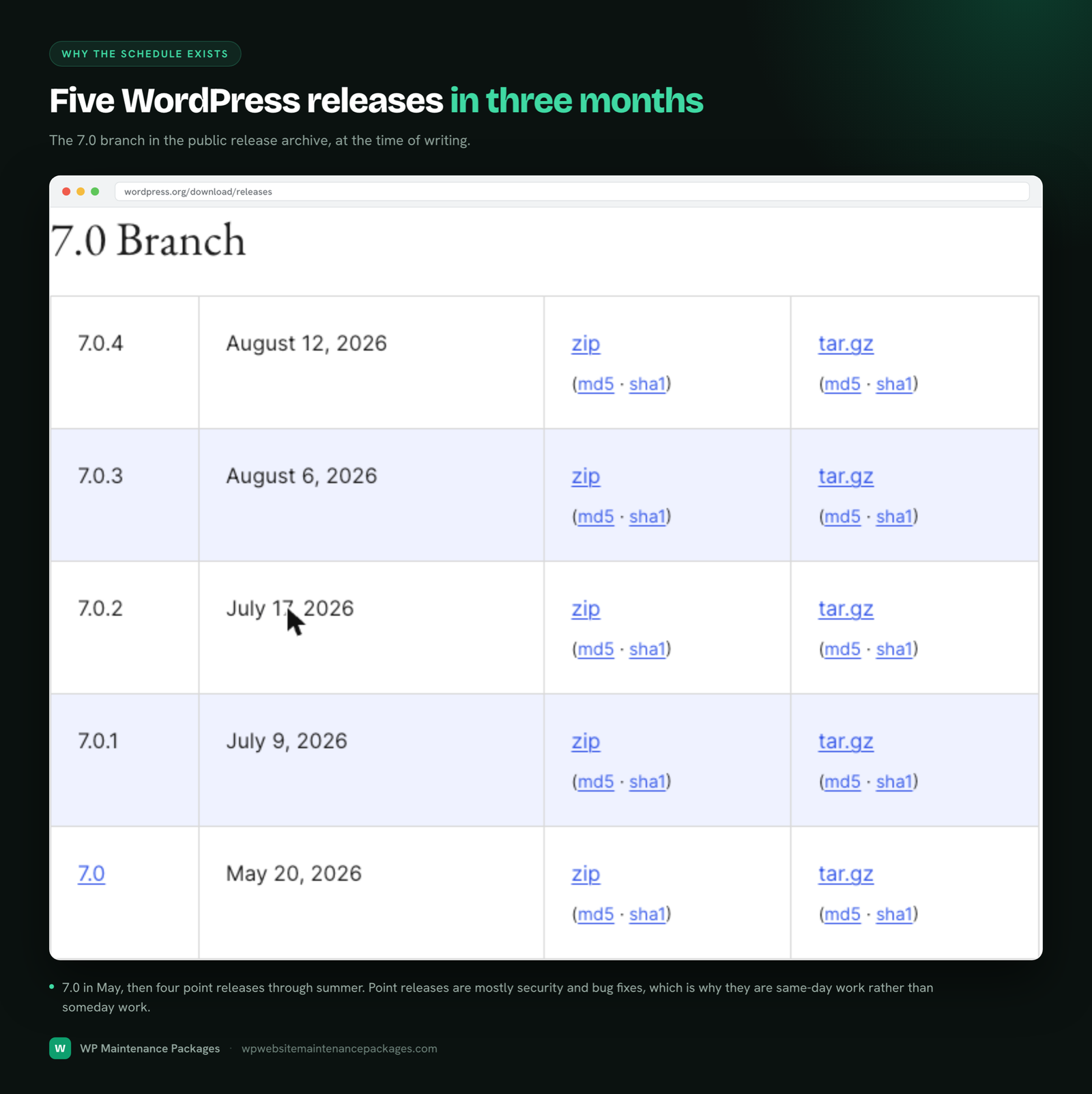
WordPress itself ships roughly three major releases a year now, spaced about four months apart, with smaller minor and security releases in between as needed. Plugins and themes update on their own developers’ schedules, which means something in your install is almost always due for an update. Add it up and a real WordPress site rarely goes a full week without at least one update waiting in the dashboard. Here is the cadence that keeps all of it under control.
| What | How often | Why this pace |
|---|---|---|
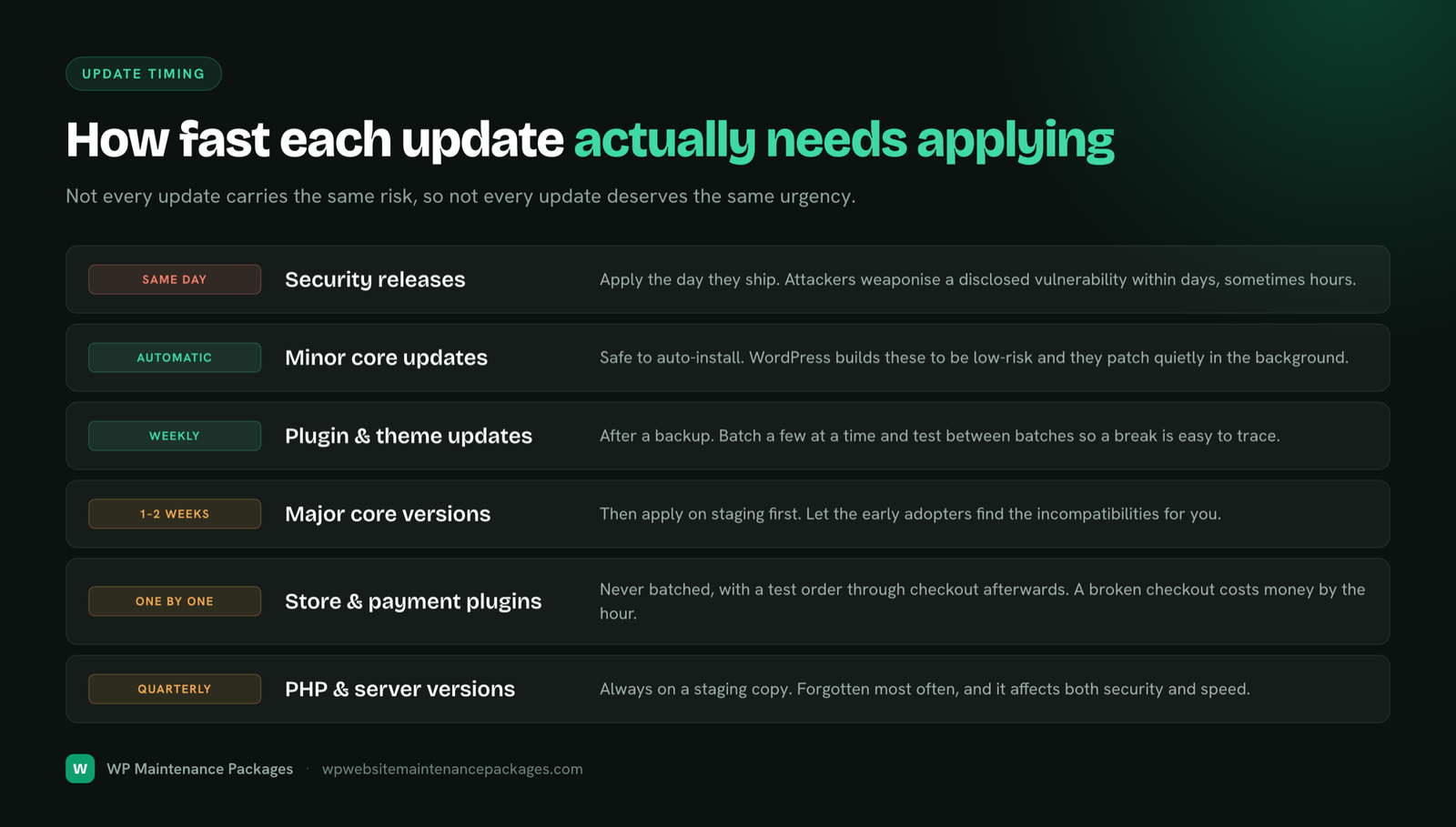
| Security releases (core, plugins, themes) | Same day, no waiting | Once a vulnerability is public, bots start scanning within hours. Speed is the whole defense. |
| Plugin and theme updates (non-security) | Weekly, after a backup | Batching them weekly keeps you current without chasing every release, and a backup makes each one reversible. |
| Minor core releases (e.g. x.x.1) | Automatic, same day | These are bug and security fixes designed to be safe. WordPress installs them by default. |
| Major core releases (e.g. a new x.x) | Wait 1 to 2 weeks, then staging first | Gives plugin developers time to ship compatibility fixes and lets early bugs surface on other people’s sites, not yours. |
| PHP and server software | Yearly, or when your host offers it | Big performance and security gains, but it can break older code, so it needs testing on a staging copy. |
The pattern underneath the table is simple. Anything labelled security moves immediately. Everything else moves on a predictable loop with a backup in front of it and, for the risky stuff, a staging copy to catch problems before your visitors do. Get that rhythm right and updates stop being the scary button you avoid.
Expert tip: Never run a major core update and an “update all plugins” in the same click. If something breaks, you will not know which change caused it. Update the core on its own, test the site, then run your normal plugin batch separately.
The full WordPress maintenance schedule
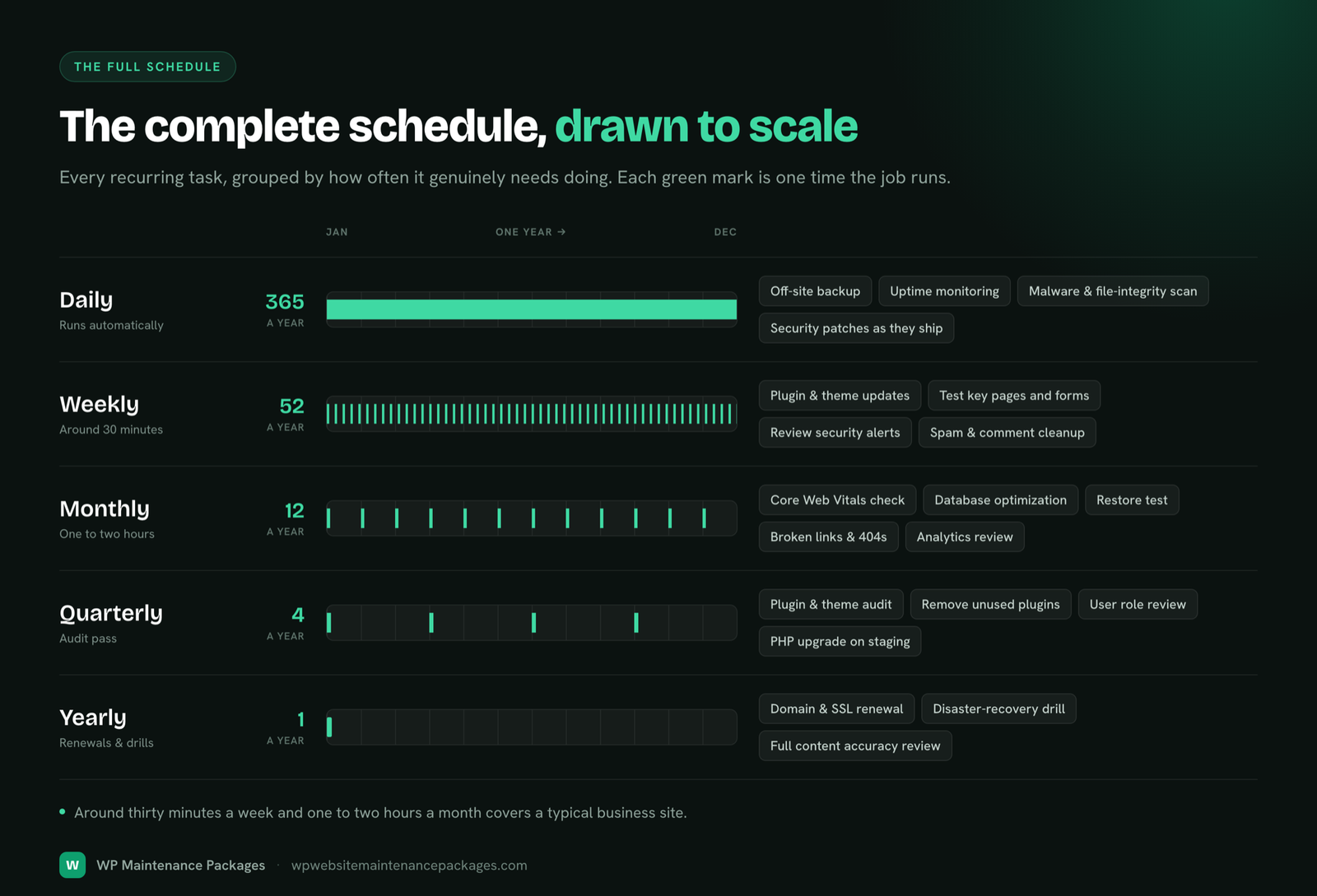
Updates are the loudest part of maintenance, but they are not the whole job. A healthy WordPress site runs a stack of tasks on daily, weekly, monthly, quarterly and yearly loops. Here is the complete rhythm, built specifically around how WordPress behaves rather than a generic website checklist.
| Frequency | WordPress tasks |
|---|---|
| Daily | Confirm the off-site backup ran and is valid; check uptime and security alerts; watch for brute-force login spikes on wp-login |
| Weekly | Back up, then apply tested plugin, theme and minor core updates; run a malware scan; test key forms and checkout; spot-check speed on your money pages |
| Monthly | Review Core Web Vitals; clean the database of revisions, transients and spam; test a full restore from backup; scan for broken links; review Search Console coverage and analytics for silent drops |
| Quarterly | Full plugin audit (remove unused ones, replace abandoned ones); security hardening review; rotate passwords and review admin user access; content accuracy pass |
| Yearly | Renew domain and hosting before they lapse; plan and test PHP and major version upgrades; full site audit; run a disaster-recovery drill so you know the restore actually works |
Done properly, this is roughly three to five hours of focused technical work a month for a typical business site, more in any week where an update misbehaves or a store needs extra testing. None of it is dramatic on its own. The value is entirely in consistency, which is also the part almost everyone underestimates. For the full task-by-task version you can tick off yourself, use our website maintenance checklist, and if you want the case for why each task matters, our breakdown of the real risks of neglecting maintenance spells out what goes wrong when the schedule slips.
Why not just turn on auto-updates and forget it?
Because auto-updates solve the “did I click the button” problem and quietly create a new one: nobody is watching when an update breaks the site. WordPress will happily auto-update a plugin at 3am, and if that update conflicts with your theme or another plugin, your site can sit broken for hours before anyone notices. Auto-updates without monitoring and backups is not a safety net, it is a slow-motion accident waiting for the wrong release.
That said, auto-updates are the right call for some things and the wrong call for others. Out of the box, WordPress already auto-installs minor core releases and security patches, and that default is worth keeping because those releases are specifically built to be safe. The judgement call is about plugins, themes and major versions.
- Safe to auto-update: minor core releases and security releases (already on by default), plus simple, well-maintained plugins that rarely touch layout or checkout, on a site that has daily off-site backups and real uptime monitoring behind it.
- Do not auto-update: your page builder, your theme, WooCommerce and its extensions, forms, membership and payment plugins, and anything a major core version. These are the pieces most likely to break the front end, and you want a human to test the site right after they change.
Warning: Auto-updating a live site with no backup and no monitoring is the single most common way a WordPress site goes down without anyone knowing. It works fine ninety-nine times and takes the site offline the hundredth, usually on the weekend.
The professional version of auto-updates is not “turn everything on and hope.” It is auto-update the safe layer, manually batch the risky layer weekly on a staging copy, and keep monitoring and backups running underneath so any surprise is caught in minutes and reversible in one restore. The official WordPress documentation on automatic updates covers how to configure each layer.
How often should you update WordPress plugins?
Update plugins weekly for routine releases, and the same day for anything flagged as a security fix. Plugins are where the risk actually lives, so this is the task that deserves the most discipline. By most security databases, the overwhelming majority of WordPress vulnerabilities, well over ninety percent, are found in plugins and themes rather than in the core software itself. Security researchers who track breaches consistently find that hacked WordPress sites were usually running at least one plugin left on an outdated version.
The reason weekly works, rather than daily or monthly, is a balance. Daily plugin updates mean constant interruptions and constant small risk of a bad release; monthly leaves security holes open too long. A weekly batch, always with a fresh backup in front of it, keeps you current without turning maintenance into a full-time job. The exception is always security: if a plugin you use ships a patch for an actively exploited flaw, that goes in today, not next Tuesday.
Plugin maintenance is also about subtraction, not just updates. The average production WordPress site runs thirty or more plugins, and every one is a potential entry point. So on top of the weekly update loop:
- Every quarter, delete plugins you are not actively using. A deactivated plugin still sits on the server and can still be exploited. Gone is safer than off.
- Replace abandoned plugins. If a plugin has not been updated by its developer in over a year, treat it as a liability and find a maintained alternative before it becomes the hole someone walks through.
- Check the “last updated” date before installing anything new. An actively maintained plugin is worth more than a feature-rich one that has been left to rot.
How often does WordPress core need updating?
It depends on the type of release, and WordPress already handles the urgent kind for you. Minor releases, the ones that look like a third number changing, are bug and security fixes that install automatically the same day they ship. You do not schedule those; they are designed to be safe and they happen on their own. Leave that default on.
Major releases are the ones that need a human. WordPress ships around three a year, and the smart move is to wait one to two weeks before applying each one. That pause is not laziness. It gives plugin and theme developers time to push compatibility updates for the new version, and it lets any early bugs surface on other people’s sites instead of yours. After the pause, apply the update on a staging copy first, a private duplicate of your site, click through your important pages and forms, and only then push it live. Big content or ecommerce sites should never take a major core update straight to production.
Expert tip: Do not sit on a major update forever, either. Running a core version that is a year or more behind eventually means plugins drop support for it and security backports stop. Waiting two weeks is prudent; waiting two years is its own risk.
Does PHP and the server need updating too?
Yes, and this is the layer most owners forget entirely. WordPress runs on PHP, the programming language on your server, and PHP has its own versions that get faster and more secure over time while older versions stop receiving security support. Running an unsupported PHP version is a quiet risk that never shows up in your WordPress dashboard.
Plan to review your PHP version about once a year, and upgrade when your host makes a newer supported version available. The catch is that a PHP jump can break older plugins or theme code that relied on the previous version, so this is firmly a test-on-staging-first job, never a live-site experiment. On managed hosting the host often nudges you toward newer PHP, but the testing and the timing are still your responsibility. This is exactly the kind of behind-the-scenes work our WordPress maintenance services handle so it does not fall through the cracks.
How the right frequency changes with your type of site
The schedule above is the baseline. How tightly you need to hold to it depends on what your site actually does, because different sites fail differently and cost differently when they do.
Brochure and local business sites change rarely, which fools owners into thinking they need almost nothing. The opposite is true. Because nobody logs in for weeks, a broken form or a quiet breach goes unnoticed the longest here. These sites can run a lighter touch on content tasks, but the invisible layer, weekly updates, daily backups and monitoring, matters more than anywhere, precisely because no human is watching. Our small business maintenance plans are built around exactly this “set it running and trust it” need.
Lead-generation sites live or die by their forms, and forms are fragile. A plugin update changes an email setting and leads silently stop arriving while the thank-you page keeps smiling. For these, the weekly loop must always include testing the actual contact and quote forms, not just applying updates and assuming they still work.
Ecommerce and WooCommerce stores are the highest-stakes category and need the tightest cadence. Payment gateways, checkout flows and inventory all need testing after every update, and every minute of downtime has a direct dollar cost. Stores should update on staging first far more strictly than a brochure site, and test checkout end to end every single week. The official WooCommerce update guidance is worth following to the letter, and the specifics are covered on our ecommerce maintenance page.
Membership and course sites combine store-level stakes with heavy database load and a delicate restore problem: restoring an old backup can wipe out recent signups, so backup frequency and restore care matter even more. Blogs and content sites lean hardest on speed and broken-link hygiene, so their monthly Core Web Vitals and link checks carry more weight than the average site.
What happens if you update too often, or not enough?
Both failure modes are real, and they pull in opposite directions, which is why a schedule beats instinct. Update too eagerly, applying every release the moment it appears with no backup and no staging, and you eventually catch a bad release that breaks your site with no clean copy to roll back to. This is the person who updates constantly and still ends up with a broken site, because speed without a safety net is just risk.
Update too rarely, and you leave known security holes open for the weeks or months bots need to find them. A site that gets touched “whenever I remember” is a site running outdated software most of the time, which is the exact condition automated attacks scan for. The slow version of this failure is just as costly: a neglected site drifts slower every quarter as its database bloats and its Core Web Vitals slip, and it quietly loses rankings with no obvious cause. You can check your own scores any time with Google PageSpeed Insights.
The right frequency sits between those two, and it is not a feeling, it is a schedule: immediate for security, weekly for routine updates with a backup in front, monthly and quarterly for the deeper checks. Hold that line and you avoid both the broken-site and the hacked-site versions of getting it wrong.
Can you actually keep this schedule up yourself?
You can, if you are technically comfortable and, more importantly, if you can commit to the weekly loop without fail. The tasks are knowable and the tools exist. The honest problem is not any single task. It is consistency. Maintenance only protects you if it happens every week, and “every week” is precisely what tends to slip once the novelty wears off and the business gets busy.
The common pattern with do-it-yourself maintenance is that people hold the routine for a month or two, then a busy stretch hits, the weekly update gets skipped, then skipped again, and the site drifts back into the exact unmaintained state the routine was meant to prevent. Slipping is not a character flaw, it is what happens when a recurring technical chore competes with running a business. And the gap between “I do it most weeks” and “it happens every week” is the whole ballgame, because attackers scan continuously.
That is the entire reason managed maintenance exists. A team runs the schedule on your behalf so the calendar is never your problem, security updates go out the day they ship, and someone tests the site after every change. If that trade makes sense for you, our WordPress maintenance packages and WordPress care plans cover this full schedule from a flat monthly fee, with 24/7 monitoring, daily off-site backups and no lock-in contracts.
The bottom line
How often should you update your WordPress site? Security releases go out the same day, plugin and theme updates weekly after a backup, and major core versions a week or two later on a staging copy first. Around that, backups and monitoring run daily, deeper cleanups and audits run monthly and quarterly, and PHP and major upgrades get a yearly, carefully tested pass. For a typical business site that is a few hours of focused work a month.
The frequency is the easy part to write down and the hard part to sustain, because maintenance rewards consistency over intensity. Doing it right for six weeks and then drifting is barely better than not starting. The real decision is not what the schedule is, it is who runs it every week without fail: you, holding the line through every busy stretch, or a team you trust to keep the site secure, fast and online while you get on with the business. Either way, the schedule does not change. Only who keeps it does.
Frequently asked questions
How often should you update your website?
Update security patches the same day they are released, and batch routine plugin, theme and minor core updates on a weekly loop after taking a backup. Major platform upgrades should wait one to two weeks and be tested on a staging copy before going live. Backups and uptime monitoring should run daily in the background regardless.
How often should I update WordPress plugins?
Weekly for normal releases, and immediately for any security fix. Always take a backup first so any bad update is reversible in one restore. On top of updating, delete unused plugins and replace ones the developer has abandoned, because most WordPress vulnerabilities live in plugins rather than the core software.
Should I turn on automatic updates in WordPress?
Keep automatic updates on for minor core and security releases, since those are built to be safe and WordPress enables them by default. Be more careful with page builders, themes, WooCommerce, forms and payment plugins, which are best updated manually so a human can test the site afterward. Auto-updates are only safe when daily backups and uptime monitoring are running underneath them.
How long should I wait to update to a new major WordPress version?
Wait about one to two weeks after a major release before applying it. That gives plugin and theme developers time to ship compatibility fixes and lets early bugs appear on other sites instead of yours. When you do update, run it on a staging copy first, then push to live once you have confirmed nothing broke.
How many hours a month does WordPress maintenance take?
For a typical business site, roughly three to five hours of focused technical work spread across the month, with more in any week an update misbehaves or a store needs extra checkout testing. The hours are less important than the consistency. The same tasks done reliably every week protect a site far better than a big session every few months.
Do I need to maintain my site if I have managed WordPress hosting?
Yes. Managed hosting keeps the server running and sometimes handles core and PHP, but it will not test your forms, safely update your page builder and premium plugins, clean malware from your files, optimise your database or fix a broken layout. Hosting and maintenance are two different jobs, and good hosting only covers part of the second one.
What happens if I never update my WordPress site?
It gets slower, less secure and more likely to break over time. Outdated plugins are the leading way WordPress sites get hacked, a bloated site loses speed and search rankings, and without tested backups a single bad change can take the site down with no clean copy to restore. The damage stays invisible until it becomes an expensive emergency.
Is it possible to update WordPress too often?
Only in the sense of updating recklessly. Applying every release the instant it appears, with no backup and no staging test, means you will eventually catch a bad update with no way to roll back. The fix is not to update less, it is to update on a schedule with a backup in front of every batch and a staging copy for anything risky.