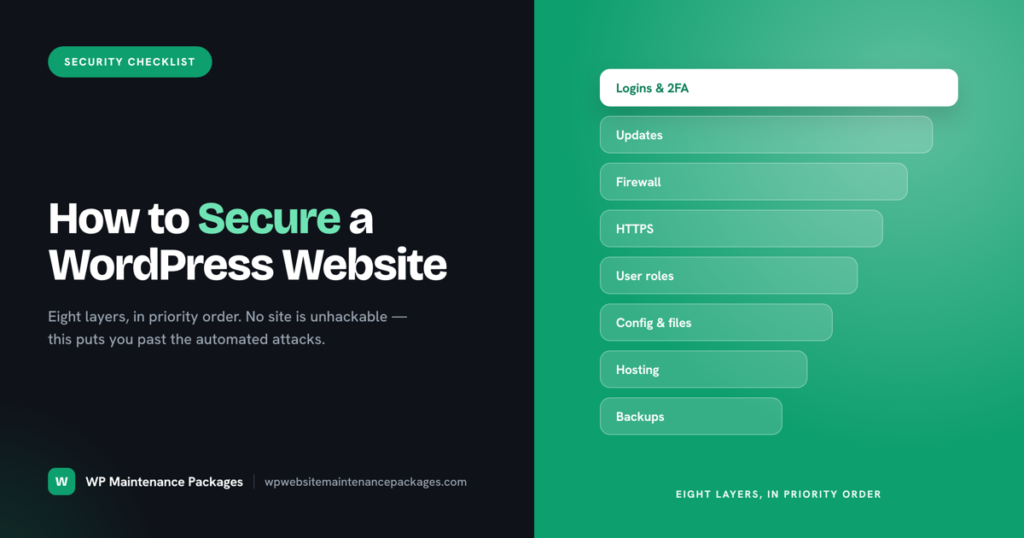
WordPress powers a huge share of the web, which makes it the most attacked platform on the internet. Not because it is insecure, but because it is everywhere, so a single working exploit can be pointed at millions of sites automatically. The bots do not care how small your business is. They scan the whole web for known holes, and an unprotected site gets found in hours.
The good news is that the same fact that makes WordPress a target also makes it defensible. The ways sites get hacked are well understood and repetitive, which means the ways to stop them are too. You do not need to be a security expert. You need to close a specific set of doors, in roughly the right order, and then keep them closed.
This is that list. A practical WordPress security checklist you can actually work through, from the changes that stop the most attacks to the deeper hardening that closes the last gaps. Everything here is preventive. If your site is already compromised, start with our guide on how to remove malware from WordPress first, then come back and harden so it does not happen again.
How do you secure a WordPress website?
You secure a WordPress website by layering defenses so that no single failure exposes the whole site: strong authentication on every login, prompt updates so known vulnerabilities never sit open, a firewall filtering malicious traffic, HTTPS encrypting everything in transit, least-privilege user roles, hardened configuration files, and automatic backups so even a successful attack is recoverable. The core idea is that security is not one big lock. It is a stack of smaller ones, and an attacker has to beat all of them.
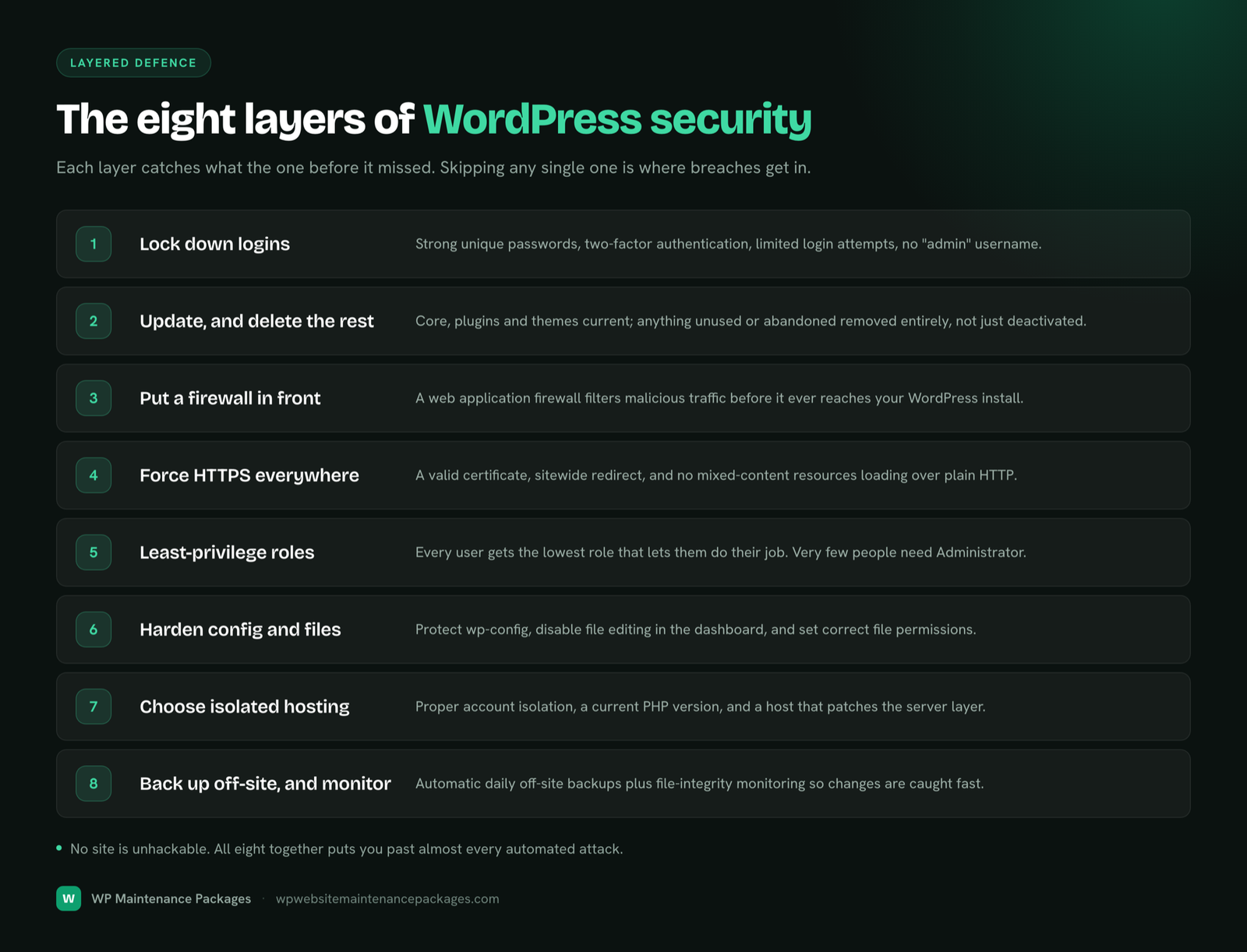
That layered approach matters because attacks come from different directions. A weak password is a different problem from an outdated plugin, which is a different problem from a missing firewall. Fix only one and you have simply changed which door is open. The checklist below is ordered roughly by impact, so if you only have an hour today, start at the top and you will block the most common attacks first.
| Priority | What to do | Stops |
|---|---|---|
| 1 | Strong passwords + two-factor on all admin accounts | Brute-force and credential-stuffing logins |
| 2 | Update core, plugins and themes promptly; remove unused ones | The most common hack: known plugin and theme vulnerabilities |
| 3 | Install a firewall (security plugin or Cloudflare) | Malicious traffic, bots and automated exploit attempts |
| 4 | Force HTTPS across the whole site | Data interception and login theft on the wire |
| 5 | Least-privilege user roles; delete stale accounts | One compromised account taking down everything |
| 6 | Harden wp-config, file permissions and security keys | File-level tampering and session hijacking |
| 7 | Automatic off-site backups + monitoring | A successful attack becoming permanent damage |
Lock down your logins
The login screen is the front door, and it is the most constantly attacked part of any WordPress site. Bots hammer wp-login trying common username and password combinations around the clock. Most of that is stopped by three things.
- Use strong, unique passwords everywhere. Long and random beats clever. A password manager makes this painless, and it means a leak on some other site cannot be reused against yours.
- Turn on two-factor authentication for every admin. This is the single highest-value security step after updates. Even if an attacker steals the password, they cannot log in without the second code. Do not skip it on any account with admin access.
- Limit login attempts. Locking out an IP after a handful of failed tries shuts down brute-force attacks cold. Most security plugins do this for you.
Two smaller wins help too: avoid the default “admin” username, since it hands attackers half the login for free, and consider moving your login page off the standard wp-login address to cut down on automated attacks hitting it. Neither replaces the three above, but both reduce noise.
Expert tip: If you manage several sites, never reuse the same admin password across them. One breached site should never become a master key to the rest. A password manager plus two-factor on each is the difference between one bad day and a very bad week.
Keep everything updated, and delete what you do not use
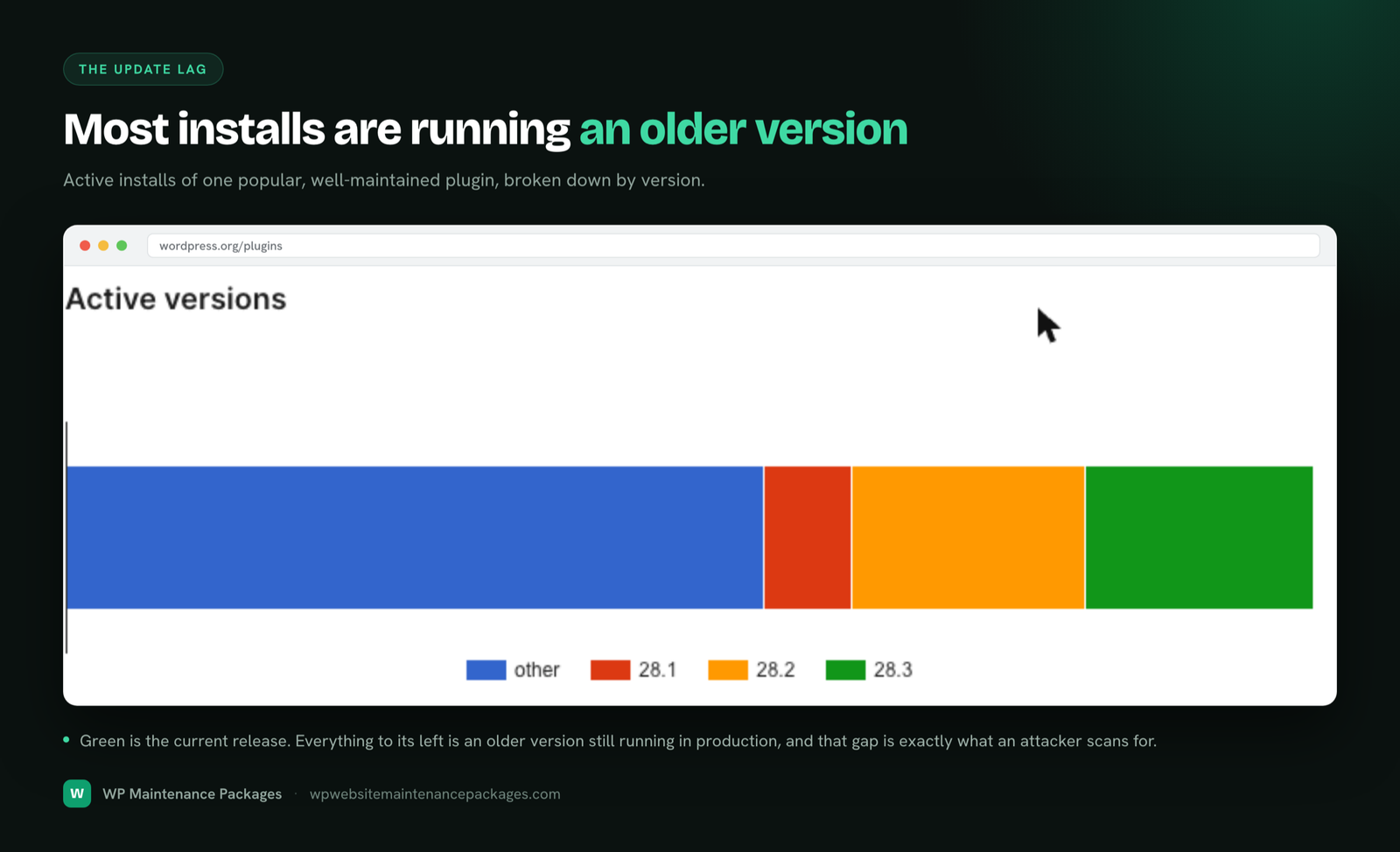
This is the big one. The overwhelming majority of WordPress vulnerabilities, well over ninety percent by most security databases, live in plugins and themes rather than the core software. And in most hacks, the exploited vulnerability already had a patch available that simply had not been applied yet. Updating promptly closes the exact holes attackers scan for.
So the rule is simple: apply security updates the same day, batch routine plugin and theme updates weekly after a backup, and never leave the core badly out of date. Just as important, every plugin and theme you are not actively using is dead weight that can still be exploited, even when deactivated, so delete them rather than leaving them installed. Fewer moving parts means fewer possible holes. For the full timing on all of this, see our guide on how often to update a WordPress site.
Put a firewall in front of your site
A web application firewall (WAF) sits between visitors and your site and filters out malicious traffic before it reaches WordPress. It blocks known attack patterns, bad bots and automated exploit attempts, which takes a huge amount of pressure off everything behind it. This is the layer that catches attacks aimed at holes you have not patched yet.
You have two main options, and they work well together. A security plugin like Wordfence or Sucuri adds a firewall that runs at the WordPress level. A service like Cloudflare adds a firewall and content delivery network that filters traffic before it ever reaches your server, which also absorbs denial-of-service attacks and speeds the site up as a bonus. For most business sites, a reputable security plugin is the baseline, and adding Cloudflare in front is a strong upgrade.
Force HTTPS across the whole site
HTTPS encrypts the connection between your visitors and your site, so passwords, form submissions and any data in transit cannot be read or tampered with along the way. It is also expected: browsers flag sites without it as “not secure,” and it is a baseline trust and ranking signal. Nearly all hosts now provide a free SSL certificate, so there is no reason to run without it.
Getting it right means more than installing the certificate. Force every request to the HTTPS version so there is no unencrypted way in, and fix any “mixed content” warnings, which happen when a secure page still loads an image or script over plain HTTP. A half-configured HTTPS setup is a common oversight that leaves gaps and breaks the padlock.
Give every user the lowest role they need
WordPress has different user roles for a reason, and handing out administrator access freely is one of the most common self-inflicted security problems. A content writer needs Author or Editor, not Admin. A developer doing a one-off job does not need a permanent admin account left behind afterward. The principle is least privilege: every account gets exactly the access its job requires and nothing more.
The reason this matters is blast radius. If a low-privilege account is compromised, the damage is limited. If an admin account is compromised, the attacker owns the whole site. So audit your users regularly, downgrade anyone who has more access than they need, and delete accounts for people who no longer work with you. Every stale admin account is a door you forgot you left open.
Harden your configuration and files
Beyond the big behavioral fixes, a handful of technical tweaks close file-level and configuration gaps. These are more advanced, so make a backup before changing anything, and if you are not comfortable editing configuration files, this is a fair place to get help. The official WordPress hardening documentation covers each of these in depth.
- Disable the built-in file editor. Adding a single line to wp-config stops anyone, including an attacker who gets in, from editing your theme and plugin code straight from the dashboard.
- Set correct file permissions. Files at 644 and directories at 755 is the standard, with wp-config locked down tighter. Loose permissions let attackers write where they should not be able to.
- Protect wp-config.php. It holds your database credentials and security keys, so it deserves extra restriction against public access.
- Refresh your security keys and salts. These secure login sessions. Regenerating them is a good periodic habit and instantly logs out any hijacked session.
- Disable XML-RPC if you do not use it. This older feature is a frequent target for brute-force and denial-of-service attacks, and many sites do not need it at all.
Choose secure, well-isolated hosting
Your host is the foundation everything else sits on, and cheap crowded hosting undermines the best security habits. Good hosting keeps accounts properly isolated so a neighbor’s compromised site cannot reach yours, runs a current and supported version of PHP, and applies server-level security you never see. Cheap shared hosting often does none of this well.
This is also where hosting and maintenance get confused. A host keeps the server running; it does not keep your WordPress install secure, updated and monitored. Those are different jobs. We cover the distinction in detail on our hosting and maintenance page, and we manage and optimise security on your own hosting account rather than reselling hosting.
Back up automatically, off-site, and monitor for changes
Every layer above reduces the chance of a breach. Backups and monitoring deal with the reality that no defense is perfect. Automatic daily backups stored somewhere separate from your server mean that even a successful attack is a restore, not a catastrophe. A backup on the same server that gets compromised is no backup at all, so off-site is the part that matters.
Monitoring is the other half. File-change scanning, uptime monitoring and an activity log tell you the moment something is wrong, instead of you finding out when a customer does. Together, backups and monitoring turn a potential disaster into a quick, contained fix. Our WordPress care plans run both continuously, with daily off-site backups and 24/7 monitoring.
Warning: Do not treat “I have a security plugin” as done. A plugin with no backups, no updates and admin accounts sharing weak passwords is a locked front door on a house with the windows open. Security only works as a full stack.
What if your site is already hacked?
Hardening is prevention, and prevention does nothing for an infection that is already there. If you are seeing redirects to spam, a Google warning on your listing, unknown admin users, or a notice from your host, the site is compromised and needs cleaning before any of this checklist will help. Work through our step-by-step guide on removing malware from WordPress first, then use this checklist to close the hole that let them in. Cleaning without hardening just invites the next attack.
The bottom line
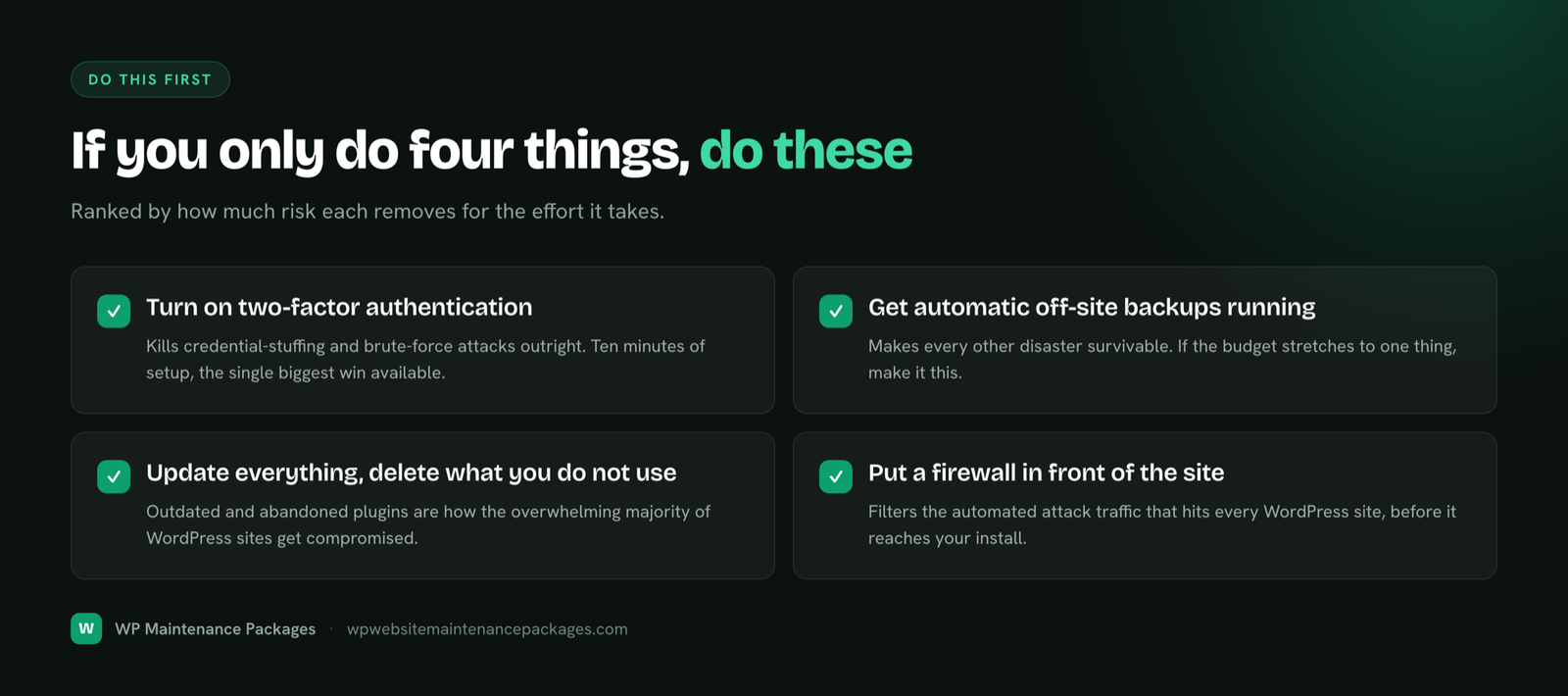
Securing a WordPress website is not one heroic action, it is a stack of sensible defaults held in place over time. Strong logins with two-factor, prompt updates, a firewall, HTTPS, least-privilege users, hardened configuration, and off-site backups with monitoring. Get those in place and you are past almost every automated attack that hits WordPress sites daily.
The honest catch is the same as with everything in maintenance: this is not set-and-forget. Users get added, plugins go stale, updates pile up, and a site that was locked down in January drifts open by summer if nobody is tending it. If keeping that stack current every week is not something you can commit to, our WordPress security and malware removal service and ongoing maintenance packages keep it hardened and watched for you, with no lock-in contracts.
Frequently asked questions
Is WordPress secure?
WordPress core is secure and actively maintained by a large security team. Most WordPress hacks are not the fault of the core software at all; they come from outdated plugins and themes, weak passwords, and poor hosting. So WordPress is as secure as you keep it, and the steps in this checklist are what “keeping it secure” actually means in practice.
What is the most important WordPress security step?
Prompt updates, closely followed by two-factor authentication on admin logins. The single most common way WordPress sites get hacked is through a known vulnerability in outdated software that already had a patch. Updating promptly closes that door, and two-factor closes the other big one, stolen or guessed passwords.
Do I need a security plugin for WordPress?
For most sites, yes. A reputable security plugin adds a firewall, login protection and malware scanning that would be tedious to set up by hand. It is not a complete solution on its own, though. It works alongside prompt updates, strong passwords and off-site backups, not instead of them.
Does an SSL certificate make my WordPress site secure?
No, and this is a common misunderstanding. HTTPS encrypts data moving between your visitors and your site, which is important, but it does nothing to stop an outdated plugin from being exploited or a weak password from being guessed. SSL is one necessary layer, not the whole of security.
How often should I check my WordPress security?
Run updates and a malware scan weekly, review user accounts and do a deeper hardening check quarterly, and keep monitoring running continuously in the background. Security is not a once-a-year audit; it drifts as users, plugins and updates change. The consistency is what keeps a site protected over time.
Can a WordPress site be 100% hack-proof?
No, and anyone promising that is selling something. No connected system is completely unhackable. What good security does is make your site far more trouble than it is worth to an automated attacker, which is enough to avoid the vast majority of real-world attacks. Backups cover the rare case that something still gets through.
Does hosting keep my WordPress site secure?
Only partly. Good hosting provides server-level security and account isolation, but it does not update your plugins, enforce strong passwords, or monitor your WordPress install for changes. Hosting and security maintenance are two different jobs, and relying on hosting alone leaves most of this checklist undone.
What are the signs my WordPress site is not secure?
Warning signs include running outdated plugins or an old core version, admin accounts with weak or shared passwords, no firewall or two-factor, no recent backups, and no monitoring in place. If several of those describe your site, it is not a question of whether it will be attacked, only when. Working through this checklist changes that.