A slow website costs you visitors, sales and rankings, and most people know their site feels sluggish long before they do anything about it. The good news is that WordPress speed problems are usually caused by a small number of big issues, not a thousand tiny ones, so fixing the right two or three things often turns a slow site fast.
The trap is optimising blindly. People install five speed plugins, tweak dozens of settings, and end up with a slower, more fragile site than they started with. The way to actually speed up WordPress is to measure first, find the real bottleneck, and fix the big things in the right order.
This guide walks the changes that actually move the needle, roughly in order of impact, in plain English. No jargon dumps, just what to do and why it works. For a done-for-you version, our website speed optimization service handles all of this, but everything here is something you can tackle yourself.
How do you speed up a WordPress website?
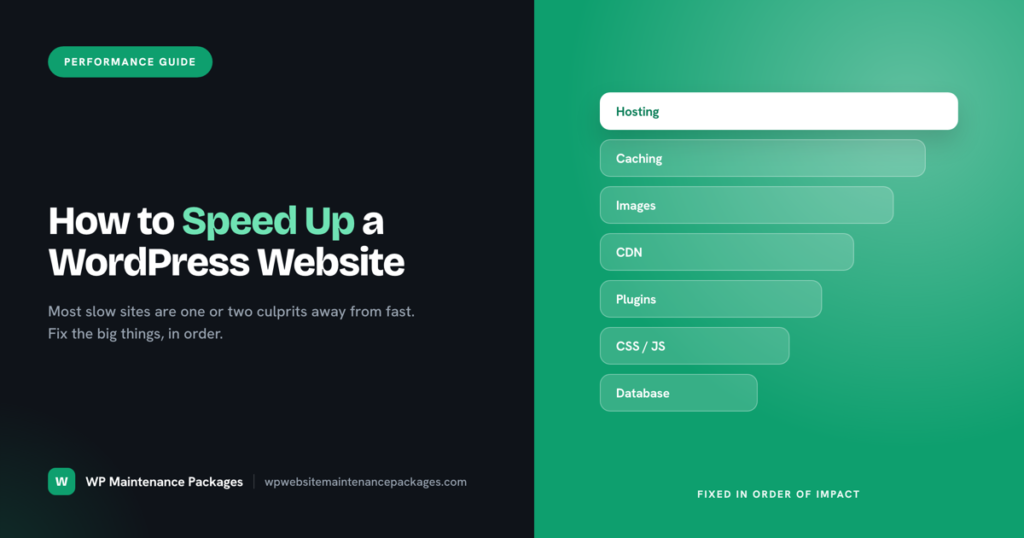
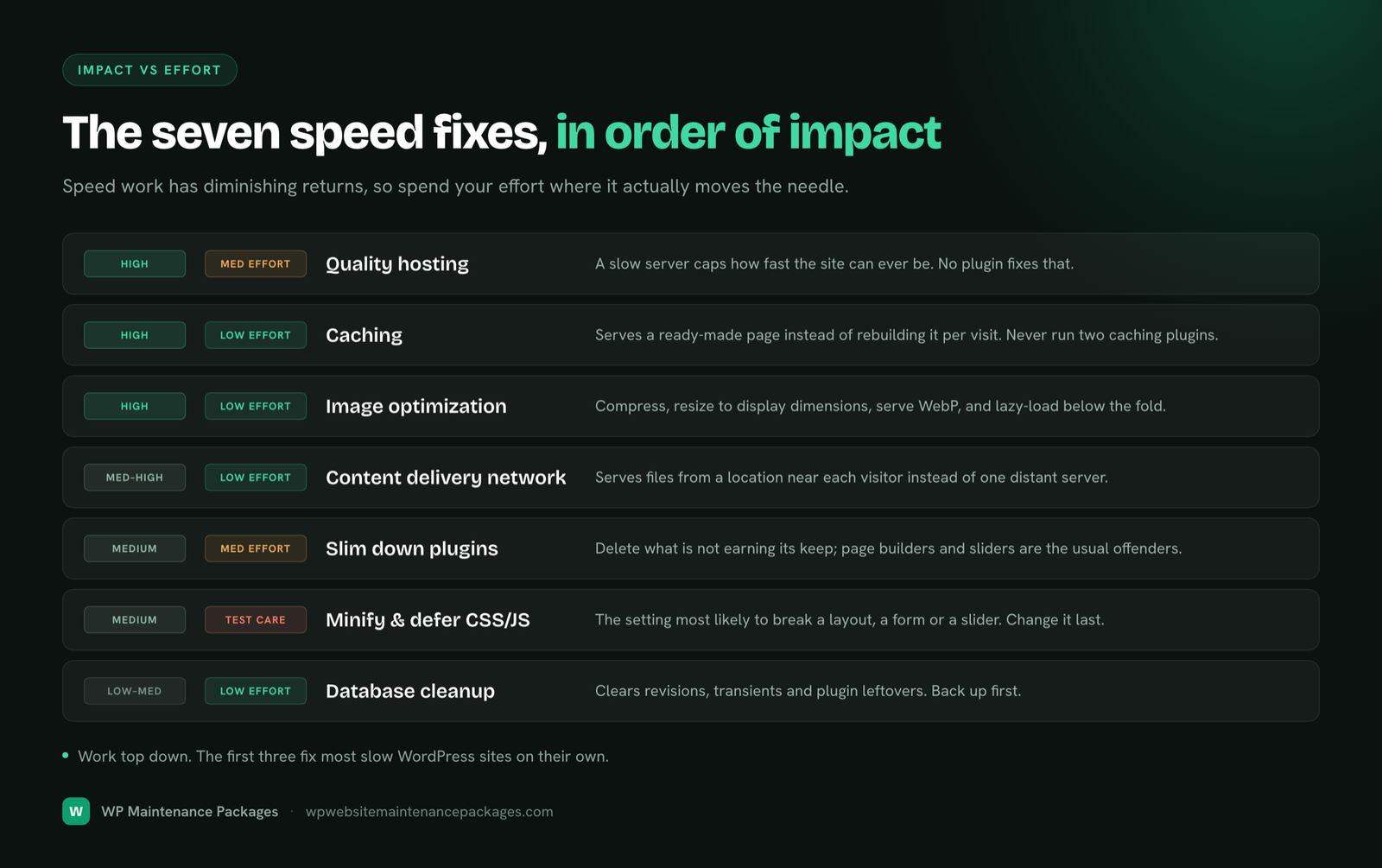
You speed up a WordPress website by fixing the big performance costs in order: get fast hosting, enable caching, optimise your images, and add a content delivery network, then tidy up plugins, code and the database. Those first four handle the majority of speed problems on a typical site. The reason order matters is that speed work has diminishing returns, so you want to spend your effort on the changes that move the needle most before fussing with the small stuff.
Before you change anything, measure. Run your site through a real testing tool so you know your starting point and, more importantly, what is actually slowing it down. Optimising without measuring is guessing, and you cannot tell if a change helped if you never recorded where you began.
| Fix | Impact | Effort |
|---|---|---|
| Quality hosting | High | Medium (may mean migrating) |
| Caching | High | Low |
| Image optimization | High | Low to medium |
| Content delivery network (CDN) | Medium to high | Low |
| Remove and slim down plugins | Medium | Medium |
| Minify and defer CSS/JavaScript | Medium | Medium (test carefully) |
| Database cleanup | Low to medium | Low |
Start by measuring your current speed
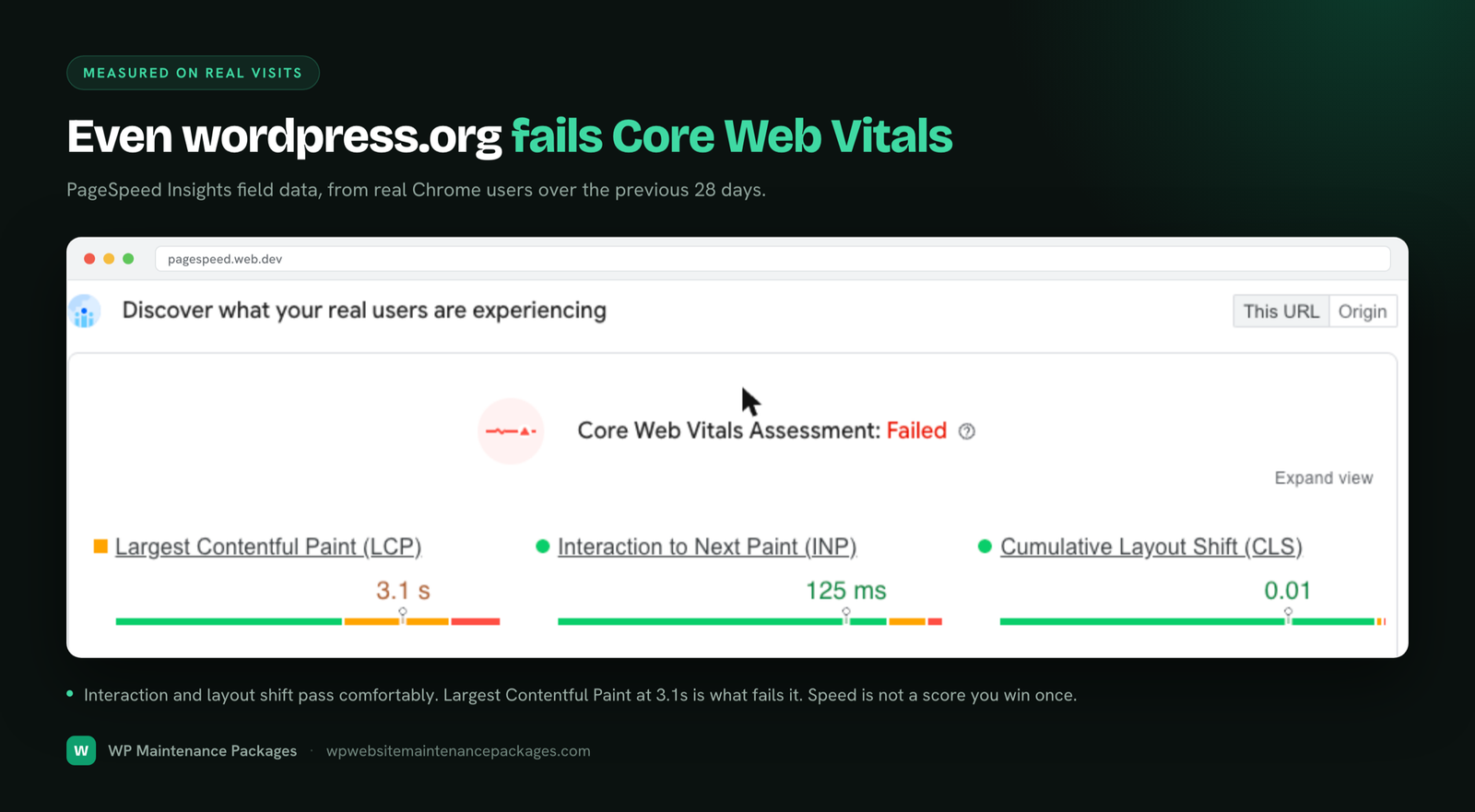
You cannot fix what you have not measured, so begin here. Run your site through Google PageSpeed Insights, which grades your performance and, crucially, lists the specific things slowing your pages down. Test a few different page types, your homepage, a key service or product page, a blog post, since they can have different problems.
Pay attention to the Core Web Vitals, Google’s set of real-world speed and stability measures that also feed into search rankings. The report will usually point straight at your biggest culprits, often oversized images or render-blocking code, which tells you exactly where to spend your effort. Write down your starting scores so you can prove the improvement later.
Fix 1: Get hosting that is actually fast
Hosting is the foundation, and cheap crowded hosting caps how fast your site can ever be. If your server is slow to respond, no amount of plugin tweaking fixes it, because every visitor is waiting on the server before anything else even starts. This is the least glamorous fix and often the most effective.
Quality hosting gives your site enough resources, runs a current version of PHP (which is meaningfully faster than older versions), and does not cram thousands of sites onto one struggling server. If your PageSpeed report shows a slow server response time and you are on a budget shared plan, upgrading hosting or moving to a better host is likely your single biggest win. We manage and optimise performance on your own hosting account rather than reselling hosting, and cover the relationship between the two on our hosting and maintenance page.
Fix 2: Enable caching
Caching is the highest-impact, lowest-effort speed fix there is. Normally, WordPress rebuilds each page from scratch every time someone visits, running code and database queries for every single view. A cache saves a ready-made copy of the page and serves that instead, skipping most of the work. The result is often a dramatic speed jump from a single change.
A good caching plugin handles this, and many quality hosts have caching built in at the server level, which is even better. If you install a caching plugin, you usually do not need several, so pick one reputable option and configure it rather than stacking multiple performance plugins that fight each other. Caching alone fixes a surprising number of slow WordPress sites.
Expert tip: Do not run two caching plugins at once. They conflict, cause strange display bugs, and can actually slow the site down. One caching solution, configured properly, beats three fighting for control.
Fix 3: Optimise your images
Images are the number one cause of slow WordPress pages, because most sites upload huge photos straight from a phone or camera and let the browser shrink them on the fly. That means a visitor downloads a several-megabyte image to display it at a fraction of the size, which is enormously wasteful. Fixing images is often the biggest single speed improvement after caching.
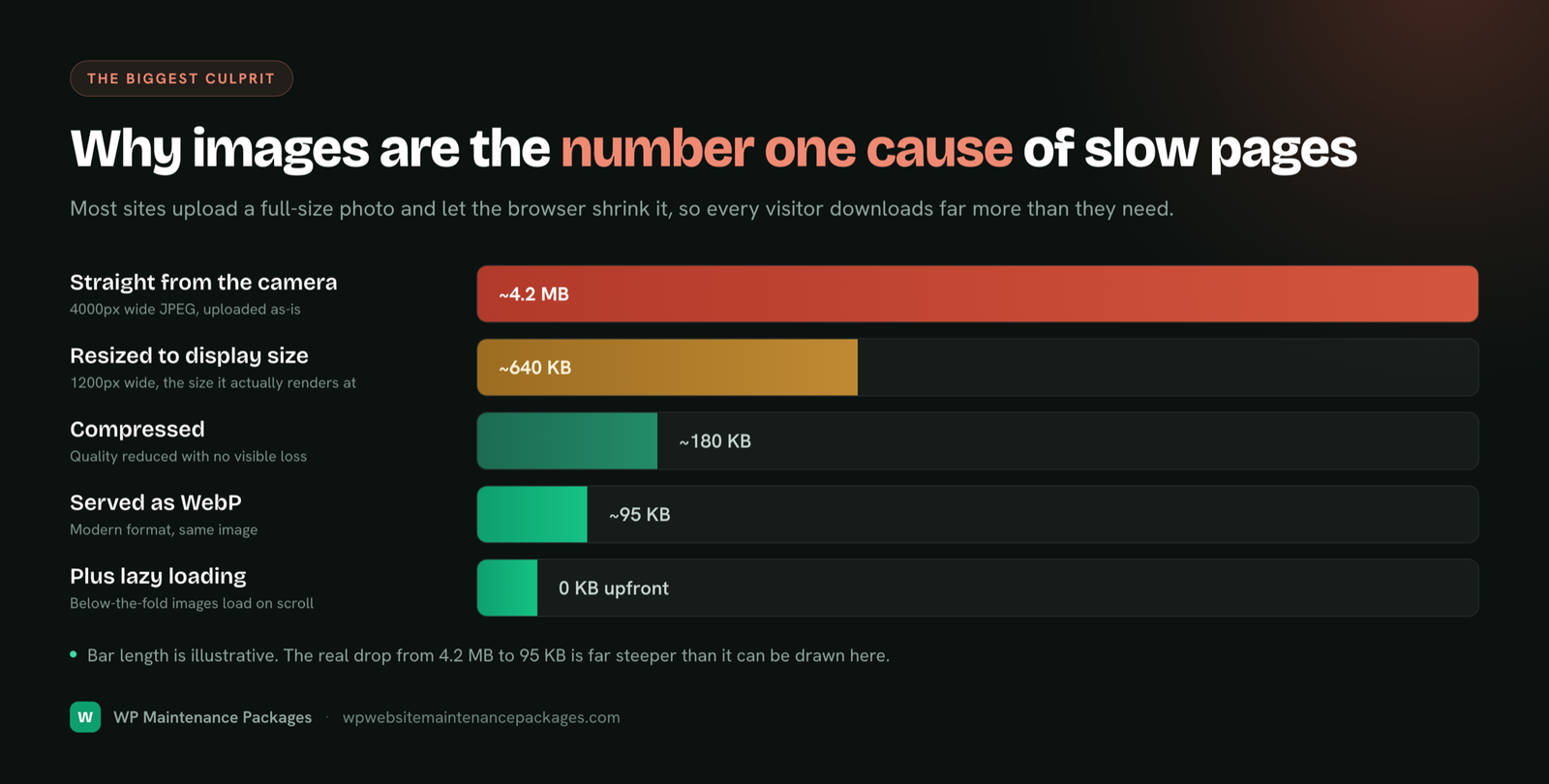
Three things fix images: compress them so the file size drops without visible quality loss, resize them to the actual dimensions they display at rather than uploading originals, and serve them in a modern format like WebP that is much smaller than old JPEGs and PNGs. An image optimization plugin can do all three automatically for new uploads and your existing library. Also enable lazy loading, which delays loading images until a visitor scrolls to them, so the top of the page appears faster.
Fix 4: Add a content delivery network
A content delivery network, or CDN, stores copies of your site’s files on servers around the world and serves each visitor from the one nearest them. Instead of everyone loading your site from a single server that might be on another continent, they get it from a nearby location, which cuts load time, especially for visitors far from your host.
A CDN like Cloudflare is quick to set up, often free at the basic level, and adds a security and traffic-filtering benefit on top of the speed gain. For any site with visitors spread across regions, or any store, a CDN is close to essential and one of the easier wins on this list.
Fix 5: Clean up your plugins
Every plugin adds code that runs on your site, and some add a lot. A bloated plugin, or simply too many of them, drags down performance and adds things that load on every page whether they are needed or not. Plugins are a common hidden cause of a slow site.
Audit what you have. Deactivate and delete plugins you are not actively using, since even inactive ones are clutter and a security risk. Watch for the heavy ones, page builders, sliders and social feeds tend to be the worst offenders, and consider lighter alternatives where you can. The goal is not the fewest plugins possible, it is no plugin that is not earning its keep. A lean site is a fast site, and it is easier to maintain, which our maintenance services keep on top of as part of ongoing care.
Fix 6: Minify and defer your CSS and JavaScript
Your site loads CSS (styling) and JavaScript (interactivity) files, and these can block the page from displaying until they finish loading. Two techniques help. Minifying strips unnecessary characters from these files to shrink them. Deferring tells non-essential scripts to load after the page appears, so visitors see content sooner instead of staring at a blank screen while scripts load.
Most good caching and optimization plugins offer these as toggles, which makes them easy to enable. The catch is that aggressively combining or deferring scripts can occasionally break a site’s layout or a feature, so this is a test-carefully fix: turn it on, then check your key pages and anything interactive still works. If something breaks, dial it back. This is where measuring before and after really pays off.
Warning: Aggressive CSS and JavaScript optimization is the setting most likely to break your site’s appearance or a feature like a form or slider. Always test key pages after enabling it, and if you run a store, test checkout specifically before assuming it is safe.
Fix 7: Keep the database clean
Over time, your WordPress database fills with clutter: old post revisions, deleted items sitting in the trash, expired temporary data, and leftovers from plugins you removed. A bloated database makes every query a little slower, which adds up. Regular cleanup keeps it lean and responsive.
An optimization plugin can clear out revisions, transients and other junk safely, and it is a good task to run on a schedule rather than once. Back up before a big cleanup, since database work is harder to undo than most changes. This is a smaller win than hosting or images, but it is easy and it stops the slow, invisible drift that neglected sites suffer from. Keeping it tidy is part of the regular rhythm covered in our maintenance checklist.
The bottom line
Speeding up a WordPress website is mostly about fixing a few big things in the right order: solid hosting, caching, optimised images and a CDN handle the bulk of it, with plugin cleanup, code optimization and database tidying closing the gap. Measure first so you fix the real bottleneck, and measure after so you know it worked. Most slow sites are one or two culprits away from fast.
The other half of speed is keeping it. A site you optimise today slowly drifts back toward slow as images pile up, plugins accumulate and the database bloats, unless someone keeps it in check. That ongoing upkeep is what our speed optimization and maintenance packages are built for, so the site you make fast stays fast.
Frequently asked questions
Why is my WordPress site so slow?
Usually one or two big causes: slow hosting, no caching, or oversized images, sometimes combined with too many heavy plugins. Speed problems are rarely a hundred small issues; they are typically a couple of major ones. Running your site through a speed testing tool will point straight at the specific culprits so you can fix the right thing.
What is the single best way to speed up WordPress?
For most sites, caching, because it skips the work of rebuilding each page and often produces a dramatic jump from one change. If your hosting is the bottleneck, though, better hosting wins, since nothing else can compensate for a slow server. Measuring first tells you which of the two is your biggest problem.
Do I need a caching plugin?
Yes, unless your host provides caching at the server level, which is even better. Caching is the highest-impact, lowest-effort speed fix available. Just do not run more than one caching plugin at a time, since multiple caching tools conflict and can slow the site down instead of speeding it up.
How do images slow down my website?
Most sites upload full-size photos and let the browser shrink them for display, so visitors download files far larger than they need. This is the number one cause of slow WordPress pages. Compressing images, resizing them to their display dimensions, and serving them in a modern format like WebP fixes it, often as the biggest gain after caching.
Will speeding up my site help SEO?
Yes. Site speed and Core Web Vitals are ranking factors, and a faster site also keeps visitors from leaving, which indirectly helps rankings too. Speed is not the only SEO factor, but a slow site actively works against you, so fixing it removes a real drag on your search performance.
How many plugins is too many?
There is no fixed number; what matters is what each plugin does and how heavy it is. A few well-built plugins can be fine, while one bloated plugin can slow a site badly on its own. The rule is to keep only plugins that earn their keep and delete the rest, including inactive ones.
Can too much optimization break my site?
Yes, particularly aggressive combining or deferring of CSS and JavaScript, which can break layouts or features like forms and sliders. That is why speed work should be done one change at a time with testing after each, and why you should never assume an optimization setting is safe without checking your key pages and checkout.
How fast should a WordPress site load?
Aim for pages that feel instant, generally loading in a couple of seconds or less, and for passing Core Web Vitals in a real testing tool. Faster is always better for both visitors and rankings, but the practical target is quick enough that nobody waits or leaves. Measuring against Core Web Vitals gives you a concrete goal rather than a vague feeling.